

Pairing the device with the Wiser Hub
- On the Home screen, tap
 .
. - Tap Devices
 > >
> >  2-gang Switch.TIP: You can also navigate by tapping Control > > Lights > 2-gang
Switch.
2-gang Switch.TIP: You can also navigate by tapping Control > > Lights > 2-gang
Switch. - Tap Scan QR code and allow the Wiser
Home app to access your camera. Then, scan the QR code located on
the device.NOTE: If you are unable to find the correct QR code, tap I can't find the correct QR code to pair the device manually and proceed to step 4.

If the QR code is incorrect, a message Incorrect QR code scanned will appear. Tap I can't scan the QR code and choose one of the following options:
-
(A): Enter the Mac Address/EUI-64 and Install Code, then tap Connect. The app will verify if the Mac Address/EUI–64 and Install code are valid.
-
(B): Tap this option if you are unable to find the Mac Address/EUI–64 and Install code.


-
- Tap Next, short press the top-left
push button 3 times (< 0,5 s) and make sure that the LED blinks
amber.Wait for a few seconds until the LED turns green and the app confirms that the device has been joined.

 NOTE: If the LED is not blinking amber, see the instructions by tapping LED not blinking amber?.
 - Tap
 to enter the
device name.The given name will be displayed as the device name throughout the app.
to enter the
device name.The given name will be displayed as the device name throughout the app. - Tap Next, enter a name for the Top Switch, and tap Light Location to assign it to a new or existing room.
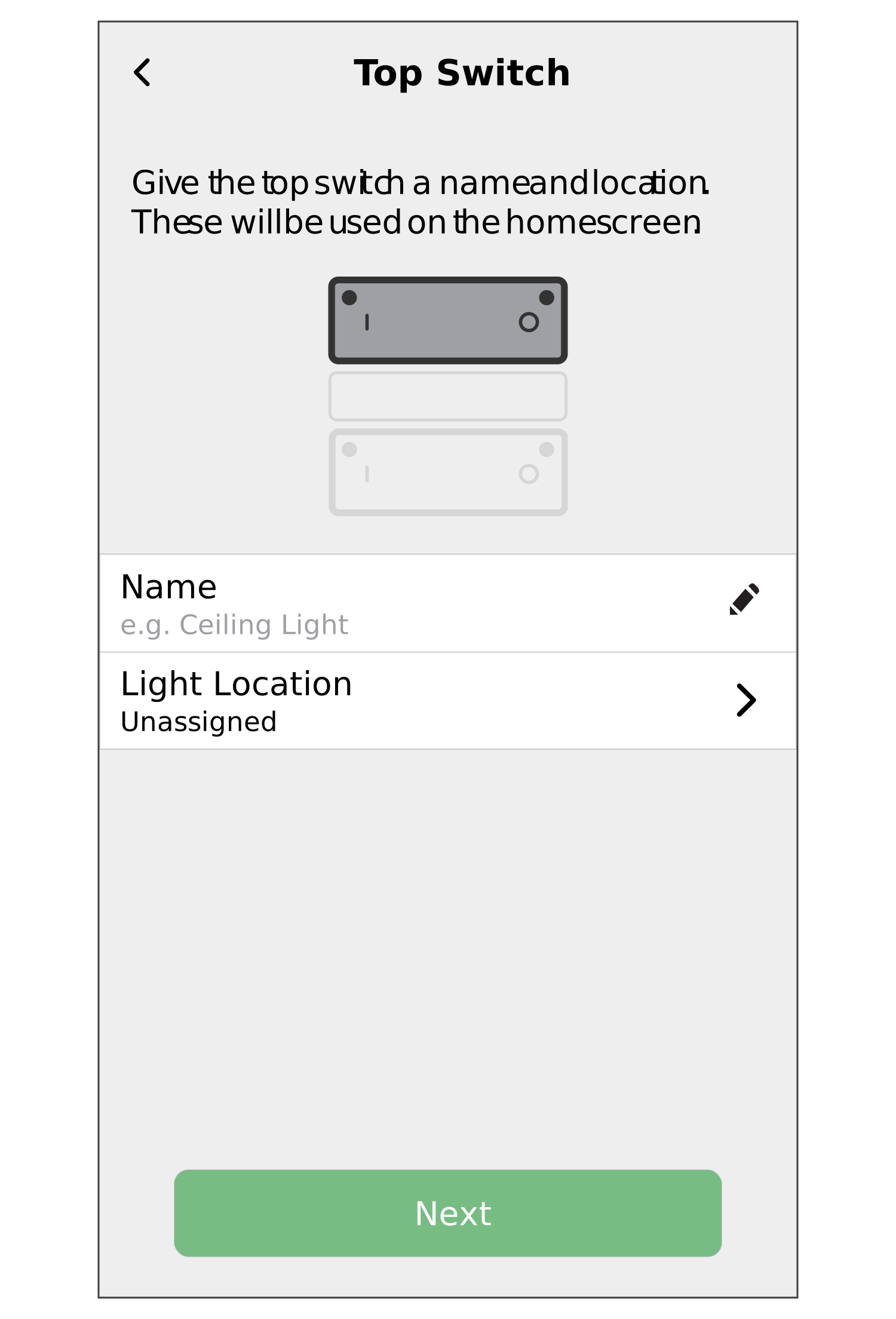
- Tap Next, enter a name for the Bottom Switch, and tap Light Location to assign it to a new or existing room.
- Tap Submit.
After you pair the device, a success screen appears with the following options:
-
+ Add New Device: Tap to continue pairing more devices.
-
Start Using Your Device: Tap to start using the paired device.
 NOTE: The success screen appears only if you are logged in as a Home Owner.
The top and bottom switches are now added on the Control tab under the All and Room tabs.
-