
Launch and Log In
Initial Log In
-
Tap (mobile device) or double-click (PC) the application icon to launch the application. On initial launch, you will be presented with a login screen.
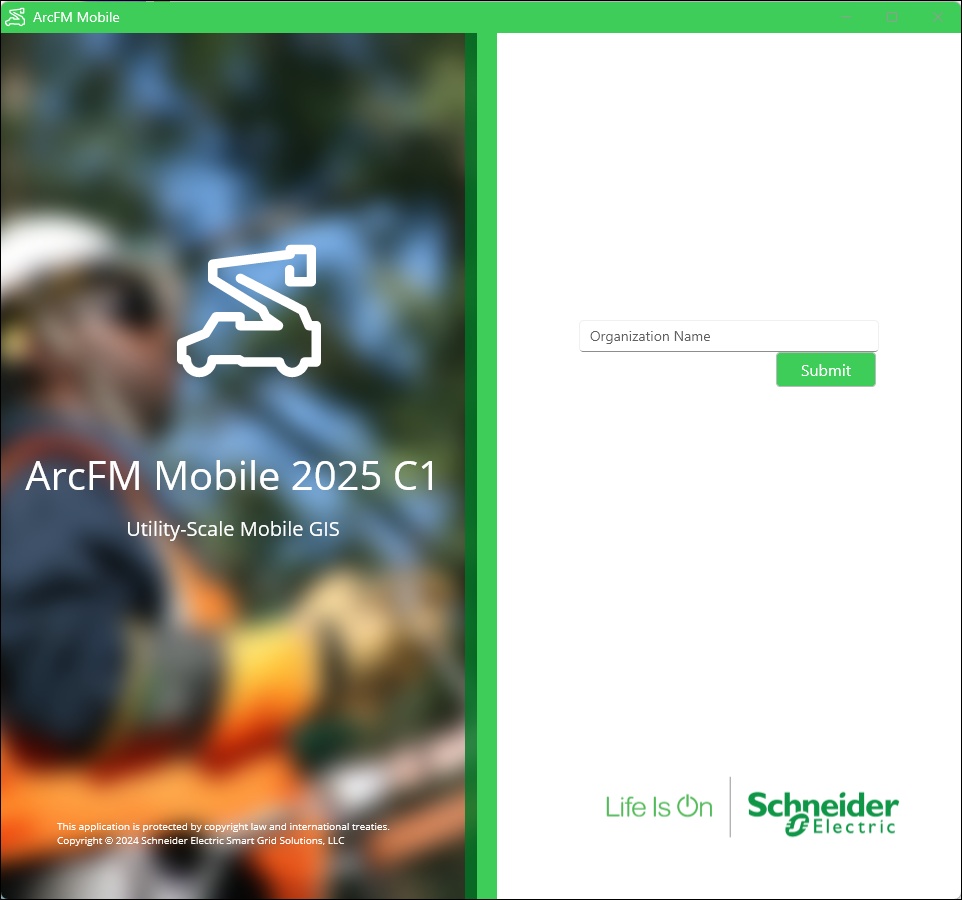
-
Type your organization name, which the is tenant name provided by your administrator.
-
Choose a login method. The options vary based upon your organization’s needs.
 NOTE:
NOTE:Depending upon the login method your organization has chosen, you may be presented with another login choice dialog or one that prompts you for credentials. The options presented to you depend completely upon the authentication methods your company has chosen.
-
Enter your username and password.
A spinner displays until the map appears.
If your organization uses federated services (essentially giving you single sign-on access to systems and applications across your organization) for your operational maps, be sure to log into ArcFM Mobile as a Portal for ArcGIS user who has permissions to the map services that you need to access. The administrator who provides you with your organization’s tenant name knows if you use federated services.