
Design Prints
When a Designer XI design contains an attached design print, ArcFM Mobile provides tools for you to view and place markups in the PDF.
- Tap the Settings
 button and choose a design from the My
Work tab. The selected design is then loaded in the map. In this example,
we have a design with three job locations.
button and choose a design from the My
Work tab. The selected design is then loaded in the map. In this example,
we have a design with three job locations.
- Open the Job Panel by tapping the work
 button
in the left pane. The panel opens and if there is a design print attached
to the job, you see the job name plus the Design Print Tool
button
in the left pane. The panel opens and if there is a design print attached
to the job, you see the job name plus the Design Print Tool  button
underneath it.
button
underneath it. 
- Tap the button to access the PDF.

The lower left of the PDF view provides the page number you are currently viewing along with the total number of pages.
In the upper right of the PDF is the Search
 tool.
Type your search criteria to see the number of hits to the right of
the field. Tap the arrow to the left of the field to exit the tool.
tool.
Type your search criteria to see the number of hits to the right of
the field. Tap the arrow to the left of the field to exit the tool. - To add markups to the PDF, tap the Markup Tools
 button.
Three tools are provided for marking up a design print:
button.
Three tools are provided for marking up a design print:-
Shapes
 : Tap this tool to add shapes that help draw attention to
specific areas of the PDF. Select from square/rectangle, circle/oval,
arrow, polygon, and polyline.
: Tap this tool to add shapes that help draw attention to
specific areas of the PDF. Select from square/rectangle, circle/oval,
arrow, polygon, and polyline. -
Freehand
 : Tap this tool to add freehand drawings
anywhere in the PDF. Select the appropriate option to change the thickness
and/or color.
: Tap this tool to add freehand drawings
anywhere in the PDF. Select the appropriate option to change the thickness
and/or color. -
Text
 : Tap this tool to place a textbox anywhere in the PDF. Select
the appropriate option to change the size and color of your text.
: Tap this tool to place a textbox anywhere in the PDF. Select
the appropriate option to change the size and color of your text.
TIP: When you make changes to the original PDF, a marked-up copy is created and your edits are saved, whilst leaving the original intact. -
- Tap the Shapes tool to add a circle. After you place
a shape, you can tap on it to change its size and shape (e.g., a circle
to an oval) using the blue vertices.

You can also tap and drag it to a new location.
 TIP:
TIP:-
When using the polygon tool, after you tap to place the number of vertices you need, tap the starting vertex to stop drawing.
-
When using the polyline tool, double-tap anywhere on the screen to stop drawing.
-
- Tap the Freehand tool to add some attention-grabbing text.
When you are finished, tap the blue
 checkmark
in the upper right to ensure that anything freehand that you draw
is saved.
checkmark
in the upper right to ensure that anything freehand that you draw
is saved.
- Tap the Text tool to add a textbox to the PDF. Type
your helpful text and tap OK.
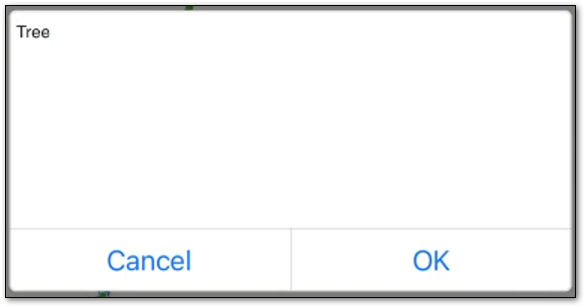
After placing a textbox, you can tap it and make the following changes:
-
The Edit text
 tool allows you to change anything you
typed in the textbox.
tool allows you to change anything you
typed in the textbox. -
The Size
 tool provides a slider you can use to
change the text’s size.
tool provides a slider you can use to
change the text’s size. -
The Color
 tool allows you to change the text color
to one provided.
tool allows you to change the text color
to one provided.
-
- Your edits are automatically saved each time you place
or change a markup, with the noted exception of freehand drawings,
for which you must tap the blue checkmark
in the upper right to explicitly save them.
View Construction Drawings in ArcFM
- In ArcFM’s Markup toolbar, if a design print is attached
to a markup, then the Construction Drawing button is available.
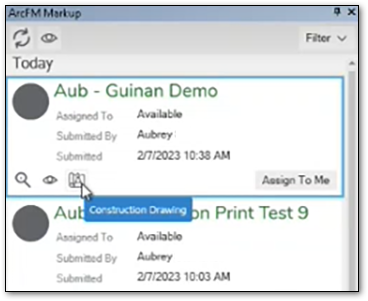
- Click the Construction Drawing button and it opens in either
your system’s PDF viewer or default browser.

You can scroll down to view multiple pages, plus you can save it, comment on it, etc.