
Wi-Fi mode connection- SmartHUB hub Gateway
-
The Wi-Fi is supported in the hub gateway SmartHUB. The date code must be 2037 and above when it is moved from out of the box. To update the latest firmware, connect the SmartHUB hub gateway to the Ethernet (see Ethernet mode connection- SmartHUB Wiser Hub Gateway ).
-
To install the SmartHUB hub gateway by Wi-Fi mode, a user must have an account in the App. For more information on creating a user account see Creating an account.
-
The Wi-Fi in the mobile phone/tablet must be active.
-
The Wi-Fi router, SmartHUB hub gateway and mobile phone/tablet must be as close as possible.
-
The following norms are satisfied based on the date code of the SmartHUB hub gateway
Working mode Date code/version number SSID Password Wi-Fi connection time Extension time User mode 2037 or later / 1.40.0 or later WiserGW_XXXXXX wisersmarthome
3 minutes
Not applicable
-/1.49.0 or later
WiserGW_XXXXXX
empty
10 minutes
Not applicable
Installation mode -/1.49.0 or later
WiserGW_XXXXXX
empty
1 hour
3 times
Working mode Date code/version number SSID Password Wi-Fi connection time Extension time User mode 2035 or later / 1.40.0 or later ElkoGW_XXXXXX elkosmarthome
3 minutes
Not applicable
-/1.49.0 or later
ElkoGW_XXXXXX
empty
10 minutes
Not applicable
- Login in to the App.
- Select the home where the SmartHUB hub gateway is located (A) then tap + icon (B) or Add Device.
-
On the Add device page, tap Add manually (C). Then select SmartHUB
hub
gateway under the listed devices.
NOTE:
-
Do not tap Auto Scan as the SmartHUB hub
gateway is not visible in Wi-Fi mode under Auto Scan -
The list of the devices vary based on country.
-
The device images in below screenshot is only for representation purpose. However, the real screen in the app varies based on the devices available in your country.
-
- Upon selecting SmartHUB hub gateway, you will receive options to select the modes of installing the SmartHUB hub gateway. Select Wi-Fi Mode for installing (D).
- Tap Confirm when you receive the Notification (E).
-
Click Next (F) when you reach the How to prepare page.

-
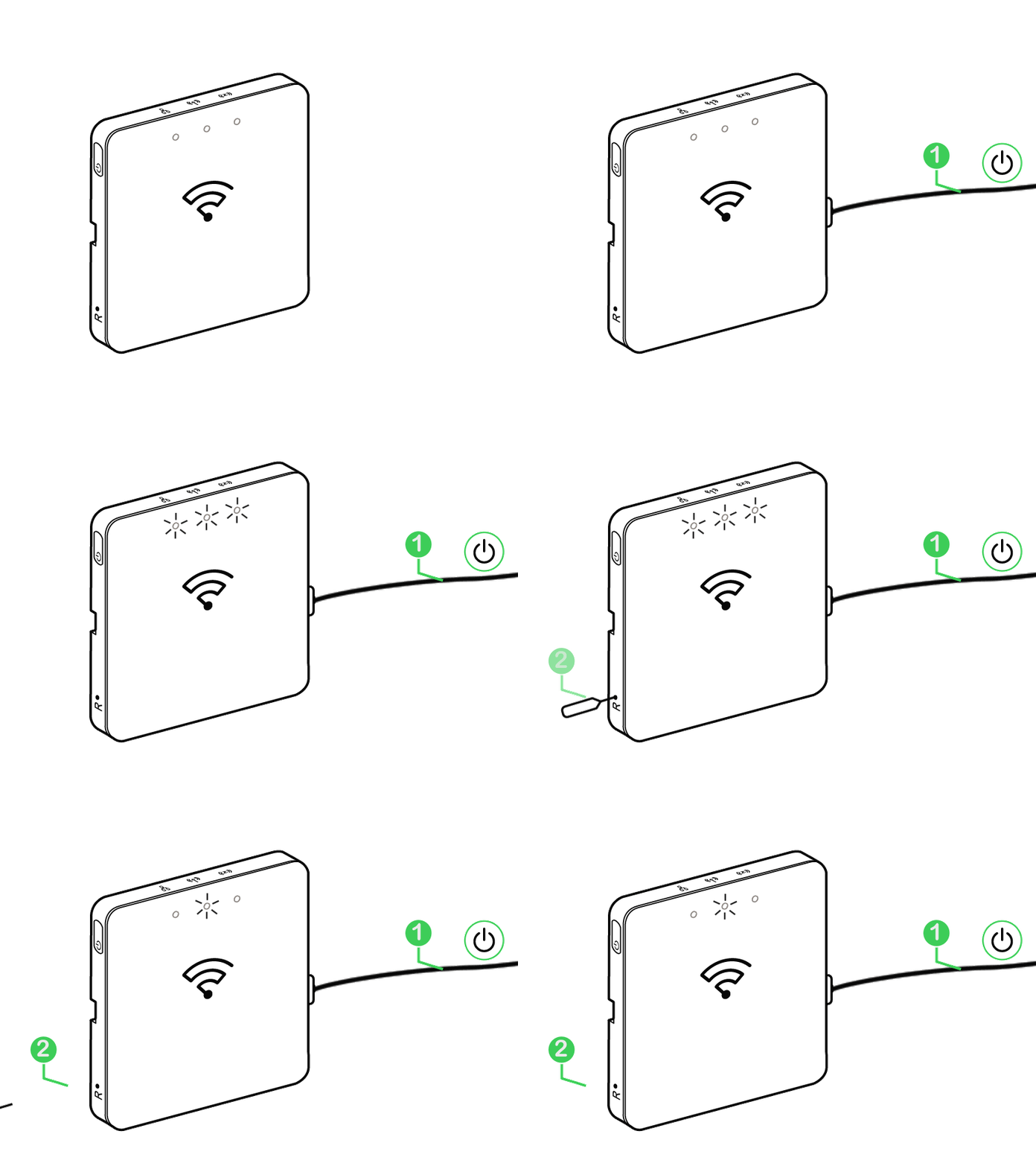
An animation is displayed about How to pair device. Follow the steps to complete the pairing, tap Confirm AP LED blinks (G) and tap Next (H). Then you will be prompted to a page showing the available Wi-Fi
network. Enter the Wi-Fi password (I) and tap Next (J).
NOTE: Use an eject tool (as shown in the animation) to short press on ‘R’ button to enable SmartHUB hub gateway to Wi-Fi mode. The pairing window lasts for 3 minutes (when the date code is 2037 or later). In case of other version, the pairing window lasts for 10 minutes.


-
Once the Wi-Fi connection is successful with the SmartHUB
hub
gateway(K), a hotspot network will be created with the Wi-Fi name WiserGW_XXXXXX (I). Tap Go to Connect (L).
Then you will be prompted to the phone setting page that will request your approval to connect to the Wi-Fi network. Tap WiserGW_XXXXXX to connect to Wi-Fi. It is recommended to go to the phone settings and check WiserGW as the Wi-Fi network and then attempt to connect.NOTE:-
The last 6 digits in the Wi-Fi network (WiserGW_XXXXXX) represents the Ethernet MAC number which is labeled on the back of the device.
-
The default password for the Wi-Fi network - WiserGW_XXXXXX is wisersmarthome.

-
-
After successfully connecting the phone to Wi-Fi, go back
to the App. When the connection is progressed, the Wi-Fi mode installing
is connection completed. Tap Done to finish.
NOTE: If the installation is being done in a new home and there was no router yet, (for ex, using a pocket Wi-Fi 4G module), refer the steps Joining a home after installing is complete.NOTE: If installing has been done in a new home where there was no Wi-Fi available (See Unavailability of Wi-Fi in Wi-Fi network requirements). Ensure to follow steps for transferring Home ownership (See Transferring home ownership) after installing is complete.
_0000512523.svg)
_DD00526495.svg)


