
Hybrid Connections
Hybrid Connections, a Microsoft Azure technology, allows you to connect through or around a firewall to securely access necessary resources without exposing those resources publicly. Hybrid Connection Manager (HCM) is usually already implemented at your site since it is often used for authentication scenarios (e.g., for Auth0 to communicate with Active Directory). Schneider Electric maintains a separate Azure Relay account per customer, and the connection strings for HCM need to be provided during setup.
Your Schneider Electric implementation team typically handles this preparation step and configures endpoint connections for you.
-
HCM must be installed on a machine (or VM) that can communicate with all applicable endpoints (ArcGIS Server, Portal for ArcGIS, PS/SDE geodatabase, Design Storage, etc.).
-
In most configurations, HCM is required for an open channel of communication between:
-
The Session Manager service, the Proxy service, and any Workflow services and your client-hosted services, such as Portal for ArcGIS.
-
The Work Management System Integration (WMSI) App Service and ArcFM XI cloud-hosted services, and your client-hosted services, such as Portal for ArcGIS and onsite Designer XI Design Storage services.
-
-
A hybrid connection is needed for each unique host machine and port number. If your on-premises Design Storage Service is on the same machine as the Network Feature Service, you need one hybrid connection. If the two services are hosted on separate machines, you need a hybrid connection for each, and these two connections should reside in a relay within your respective Azure resource group.
You can download HCM through the Microsoft Azure Hybrid Connection Client website.
Follow these steps to set up hybrid connections:
-
In the Client Configuration plugin, click the Hybrid Connections tab.
-
Click the Add New
 button to create a new connection.
 -
Notice the interface presents you with three fields (the entries in the images below are just examples):
-
Name: Type a clear and concise Name for this connection. It should be something you and other administrators can recognize as it is displayed here in Hybrid Connections and within Hybrid Connection Manager.
-
Host: Paste the host name. Consult with your Schneider Electric implementation team, if necessary.
-
Port: Type the port number, which is likely 443.
-
-
Click Save. After the application processes the Save, the interface refreshes to display a “Get Hybrid Connection” button.
 NOTE: If the Get Hybrid Connection button doesn’t display, click the Refresh
 button.
 -
Click the Get Hybrid Connection button and notice the interface updates.
-
Click Copy to Clipboard.

Now that you have the connection string copied, you can head over to Hybrid Connection Manager to paste it into a new connection.
-
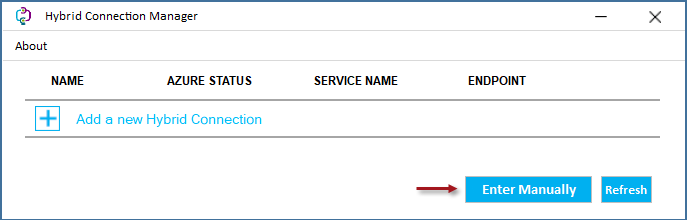
Open Hybrid Connection Manager (you can search for “Hybrid Connection Manager UI” in your Start menu).
-
In Hybrid Connection Manager, click the Enter Manually button.
-
In the Add Hybrid Connection from Connection String dialog, paste the connection string you copied from Step 8, then click Add.
-
After it processes, in the Hybrid Connection Manager dialog, verify you see an Azure Status of “Connected” for your new connection.
-
Return to the Solution Center > Client Configuration > Hybrid Connections tab.
-
If necessary, along the left-hand side, find your connection and click it once to highlight in green. It now shows HCM as “Connected.”
