

Alarm Panel
The Alarm Panel widget actively monitors and controls C-Bus enabled security systems.
Below are the key functions:
-
Integrates with security systems.
-
Allows arming/disarming of security zones (example: Away, Night, Day modes).
-
Displays system status such as alarm state, system conditions, and sensor states.
-
Enables control of alarm zones.
Add an Alarm Panel
Only one Alarm Panel widget can be added.
To add an Alarm Panel:
-
In the home page, click Other Widgets.

The Alarm Panel Widget Creation page is displayed.

-
Click
 (top right corner) to slide out the ADD OTHER
WIDGETS menu.
(top right corner) to slide out the ADD OTHER
WIDGETS menu.
-
Click Alarm Panel on the slide menu to open the Settings “Alarm Panel” window.

-
Set up Quick Functions:
-
Define the names for quick functions as per your desire (refer to the image on the right). Do not exceed more than 8 characters.
-
Select the action to be triggered from the drop-down list.
-
-
Configure Keypad Settings:

-
Enter names for up to seven keys in the respective fields (refer to the keypad image).
-
Left green keys — first column fields.
-
*, # and Enter keys — third column fields.
-
-
Select the setting to control from the drop-down list.
-
-
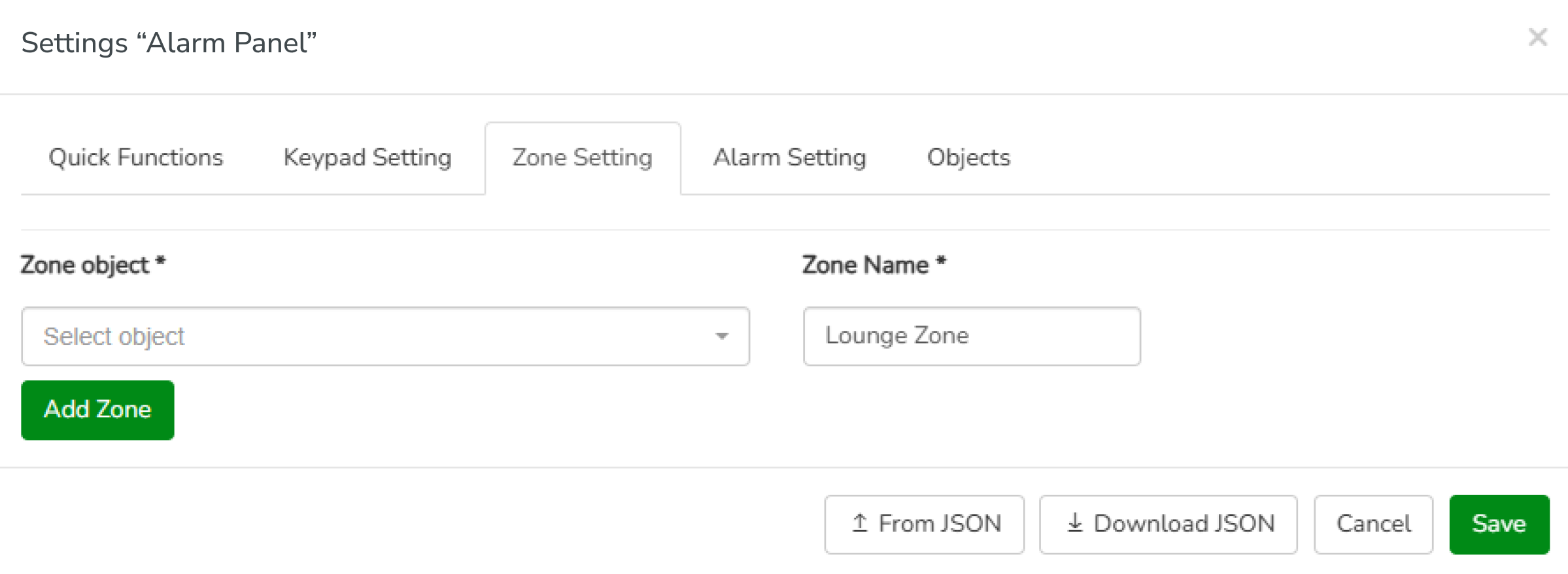
Configure Zone Settings:
-
Select a zone object from the Zone object drop-down list.
NOTE: These objects are from the object list created in the configurator. -
Enter a name for the zone in the Zone Name field.
-
Click Add Zone to add more zones (maximum 127), then provide details.

-
Click Remove to delete a zone.
-
-
Configure Alarm Setting:

-
Select an alarm object from the Alarm object drop-down list.
NOTE: These objects are from the object list created in the configurator. -
Enter a name for the alarm in the Alarm Name field.
-
Click Add Alarm to add more alarms (maximum 17), then provide details.

-
Click Remove to delete an alarm.
-
-
Configure Objects :

-
Select the mode object from the Mode Object drop-down list.
-
Select the armed object from the Armed Object drop-down list.
NOTE: These objects are from the object list created in the configurator. -
Click Save.
-
-
Click
 to download the full Alarm
Panel widget data in JSON format.
to download the full Alarm
Panel widget data in JSON format. -
Click
 to upload the Alarm Panel
widget data in JSON format directly.
to upload the Alarm Panel
widget data in JSON format directly.
Edit an Alarm Panel
Once Alarm Panel widget is added, you can edit its settings.
To edit an Alarm Panel:
-
Hover the cursor on the top right of the created Alarm Panel and click
 .
.
Settings “Alarm Panel” window is displayed.

-
Make necessary changes and click Save. The changes are updated.
Delete an Alarm Panel
To delete an Alarm Panel:
-
Hover the cursor on the top right of the created Alarm Panel and click x to delete the Alarm Panel. A confirmation message is displayed.

-
Click OK. The Alarm Panel is deleted.