

Multi Factor Authentication
Prerequisite: Install any one authentication app such as Microsoft Authenticator, FreeOTP, or Google Authenticator on your mobile device.
To setup MFA:
-
Go to Settings > Account > Multi-Factor Authentication.

Multi-Factor Authentication screen appears.

Mouse over on
 to view the tooltip.
-
Tap OK to close the pop-up.
-
Turn on the Enable multifactor auth toggle button.
A confirmation pop-up appears.

-
In the confirmation message, tap Confirm.
NOTE: MFA is enabled only after you log out of the current session and log in again following MFA setup in the settings section. -
Tap Cancel to cancel the operation.
-
Logout of the application.
-
Get started → enter login credentials → tap Login → MFA Setup screen appears.

-
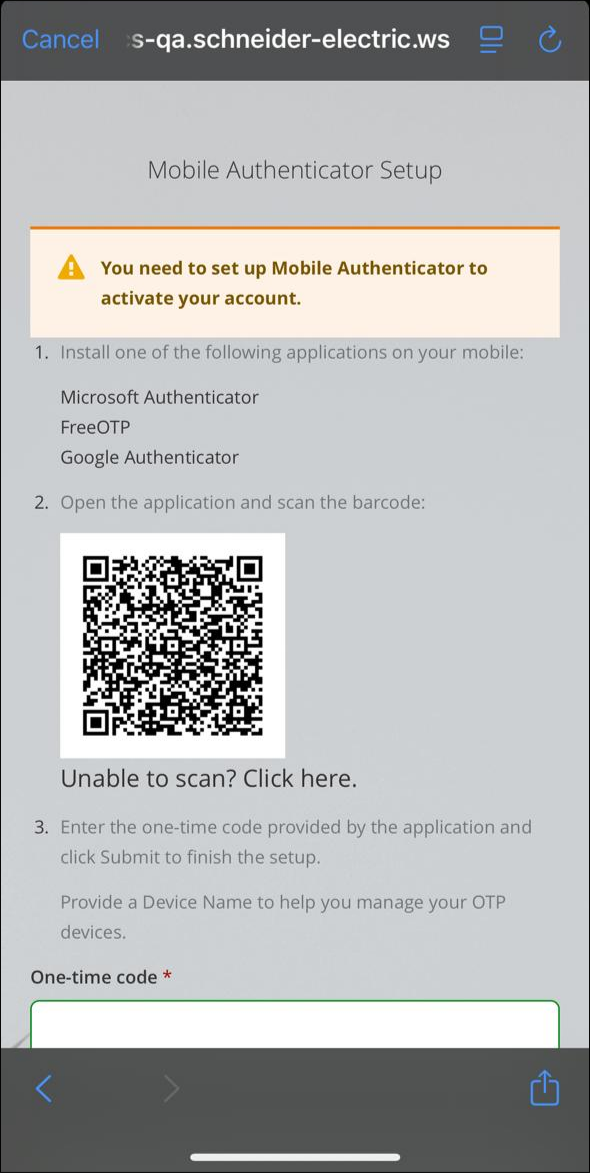
On the MFA setup screen, tap Click here to view the barcode.
-
Open the authentication application (example: Google Authenticator) on your mobile device.
-
Do one of the following:
-
Scan the bar code displayed on the screen using the authentication application.
-
Enter the setup key manually in the authentication application. (Use this option only if the barcode (QR code) does not work)
-
-
Enter the one-time password (OTP) generated by the authentication application in the One-Time code field.

-
Enter a device name.
-
Select Sign out from other devices checkbox to sign out from all other devices where your account is currently logged in.
-
Tap Submit to complete the setup.
Upon successful verification, MFA will be enabled for your account.
-
Turn off the Enable multifactor auth toggle button to disable the MFA.
A confirmation pop-up appears.

-
Tap Confirm to disable the MFA.
-
Tap Cancel to cancel the operation.
After Initial MFA Setup
Once MFA is configured, and when you log out of the application and initiates a new login session.
-
Enter username and password.
-
Upon successful credential validation, you are prompted to enter one-time code.

-
Tap Login.
NOTE: If you disable MFA and log out, you must set up the authentication process again by repeating the MFA setup steps during the next login.
Password Reset
If MFA is enabled and you logout of the application, then navigate to get started screen, and follow the below steps:
-
Tap Forgot Password on the login screen.

Reset my password screen appears.
_DD01468501.svg)
-
Enter your Email ID and tap Reset my password.
Password reset confirmation screen appears.
_DD01468500.svg)
A password reset email will be sent shortly.
-
Open the email and tap the Reset Your Password link.
The MFA verification screen appears.
-
Refer the steps 7 – 13 to complete MFA setup.
Update my password screen appears.

-
Enter the new password and tap Update my password.
Account update message appears.

-
Tap Forgot Password → Reset my password screen.
-
Enter your Email ID → tap Reset my password.
-
Open the email and tap the Reset Your Password link.
Update my password screen appears.
-
Enter new password → tap Update my password.
Password updated.