
Inspect
The Inspect tool displays attributes of features in a Reference view.
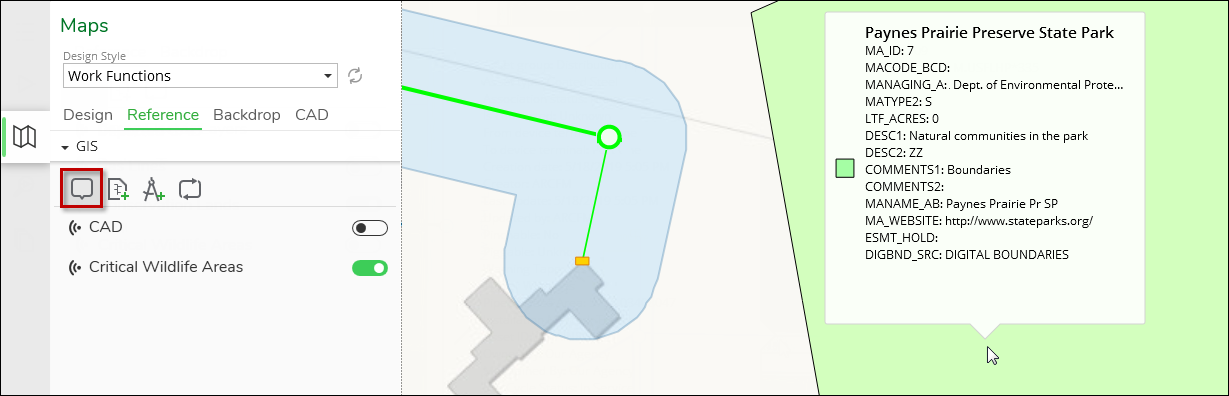
To use this tool:
-
Toggle the Reference view that contains your desired features on
 . This tool does not work if the Reference view
is off.
. This tool does not work if the Reference view
is off. -
Click the Inspect
 tool.
tool. -
In the map, click the feature and view its attributes in the pop up. This tool works with points, lines, and polygons (shapes with an area).
IMPORTANT: This tool only works with features within the Reference view. To see attributes of network components in or near your design, use the Component Information pane. -
Press Esc when finished viewing the attributes.
There are some important caveats to keep in mind when using the Inspect tool. Your administrator can make the necessary modifications to the Reference View.
-
The tool will not display fields with a data type of ObjectID, GlobalID, BLOB, or Raster.
-
You cannot see any field that stores the geometry of the object.
-
Fields with a null value do not display when using the Inspect tool. For instance, if the Zip Code field is null for one object, the field does not display for that object but does display for any object where the Zip Code is not null.
-
A field with an Alias that is all uppercase and only contains letters does not display (e.g., STREETADDRESS).