

Open C-Bus Network Using Open Using Feature
Open Using can be used on both standalone networks and bridge networks. It serves as a temporary interface that allows for the commissioning of the network without altering the existing network structure/topology. This method does not modify the network's interface within the project. Instead, it provides a temporary connection for commissioning purposes during a specific instance or session.
-
Select the network from the project.
-
Click C-Bus Devices.
-
In Network Devices, click
 drop-down and select Open Using.
Once the C-Bus Network is opened using the Open Using feature:
-
The Network Devices section border is highlighted in orange color.
-
The Network Devices title changes to orange color.
-
Network node border is highlighted in orange color.
-
Tooltip messages of Network Devices and Network node are highlighted in orange color.

An Open Network Using pop-up appears.
 NOTE: By default, Serial option is selected.
 -
-
Select the COM port number and device’s name from the drop-down.

Once you select the port number/device name, the Open button is enabled.
NOTE: You can easily view the serial port associated with the PCI name, eliminating the need to search for it in the Device Manager. -
Select Ethernet to open network devices using an IP address.
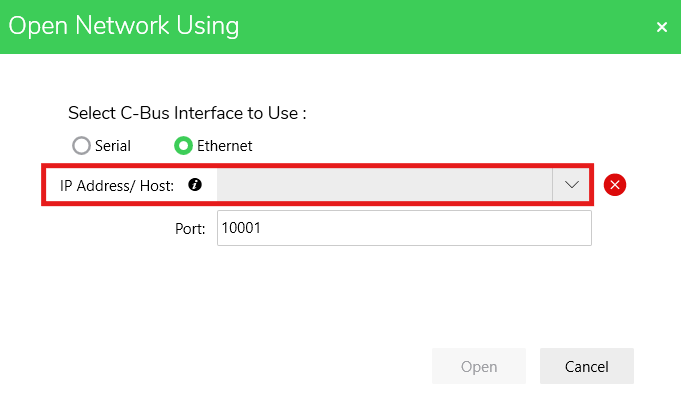
By default, the Port is displayed as 10001.
-
You can either:
-
Select the IP Address/Host from the drop-down.
or,
-
Enter the new IP Address/Host.
IMPORTANT: When you enter the IP Address:-
Ensure to have four numbers (0-255) separated by periods.
-
Do not start with zero unless the address is zero itself.
When you enter the Host Name:
-
The host name can contain up to 63 characters, including letters (a-z), digits (0-9), and hyphens (-).
-
It must not start or end with a hyphen.
-
The total length of the host name must not exceed 255 characters.
-
Each label within a host name (separated by periods) can be up to 63 characters long.
-

Once you select or enter the IP Address/Host, the Open button is enabled.
NOTE: The IP address/host drop-down menu keeps a record of the last 20 recently used entries. When a new IP Address or Host is used, it is added to the top of the list, and the oldest entry is removed to maintain the list size.If you fail to follow the criteria when entering IP Address/Host, the following error message appears.

-
-
Click Open. The network opens.
Once the network is opened, the below functions are disabled:
-
Delete Network
-
Add Bridge Network
-
Open Bridge Network
-
Open and Scan Bridge Network
-
Make Network
-