

Reading and Writing Switchgear Settings
When working with WSOS it is important to understand what is meant by off-line and on-line files. The off-line file is stored on the PC and displayed by WSOS while it is off-line. When WSOS goes on line to a controller, the displayed settings may not change but WSOS is now showing the settings stored in the controller i.e. the on-line file. To change a setting in the controller using WSOS, either change it while WSOS in on-line or change it while WSOS is off-line, then go on-line and write it to the controller.
Read Switchgear Settings
When WSOS is on-line, switchgear settings can be written to and read from the controller using wizards that can be opened from:
-
The switchgear connection tool bar if configured or
-
The options menu
The read switchgear settings from switchgear command launches the Read Settings Wizard where the information to read can be selected using the tick boxes for each setting group.
The read will effectively copy the settings in the controller and write them to the WSOS Off-Line file.
Tick the boxes for
the settings to be read and click Next >.
When the Read is complete, the wizard displays information
to show which settings have been successfully read from the controller.
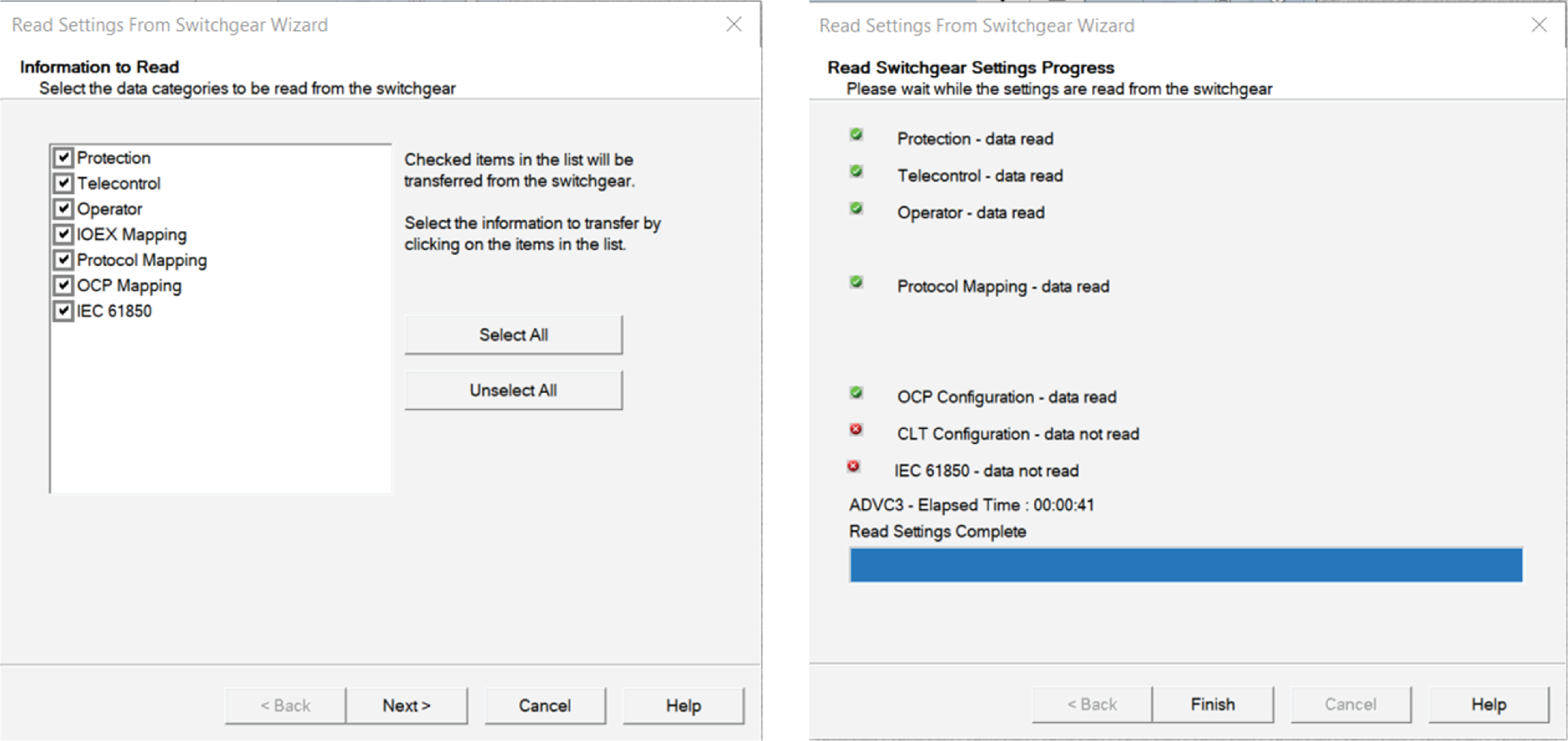
Figure 34
WSOS Read Settings pages
Write Switchgear Settings
When the Write Setting Wizard is launched it opens with a warning that this action will overwrite the settings in the controller with the settings in the off-line file.
Figure 35
WSOS Write Settings to Switchgear
Wizard
-
Select Next > to proceed with the Write command.
-
The wizard will display the check boxes for each of the setting groups, similar to the read wizard.
-
Tick the required check boxes and click Next > to start the write process.
-
When the Write is complete, the wizard will indicate which setting groups were written and if any were not written.

Figure 36
WSOS Writing Settings to Switchgear pages
Firmware Upgrade via USB Memory Stick
Version A50-07.01 now provides support for upgrading the firmware on the controller via a USB memory stick.
To use this feature, an encrypted image of the firmware is prepared via WSOS5 5.16.15 and copied to a specific location on the USB storage device.
This can be done by navigating the Firmware Loading Options menu item under the Customize menu in WSOS5 5.16.15.

Figure 37
USB Firmware upgrade
On inserting a USB storage device and then selecting this option, the below dialog is displayed.
The required firmware file (version greater than A50-07.01) can be selected via the Browse option. Once selected, additional options for retrieving data from the controller can also be chosen. The final step is to click on the Save to USB button.
 Figure 38
Save to USB options
This prepared USB storage device can now be inserted into any of the ports on the PowerLogic ADVC Controller. On insertion, the user needs to follow the instructions on the panel to execute the upgrade/retrieve the data. The controller will indicate completion of the selected tasks on the Panel.