

WSOS Communications Configuration
If a switchgear file has been created manually its communications settings will need to be configured before it can communicate with the controller. Each switchgear file has its own unique communications settings that can be configured by selecting WSOS Communications in the Customize menu.
This will launch the Communications Configuration dialogue box shown below.
Figure 28
WSOS Communications Configuration
page
The communications configuration window contains the following fields:
-
Switchgear Device: This is the name of the selected switchgear for which the settings on this window apply. To change the Switchgear that you are configuring, select the appropriate switchgear name from the combo box.
-
COMMS Channel: Only displayed when the direct protocol is selected.
-
Polling Period: The number of seconds between when WSOS polls the Switchgear for information.
-
Active Protocol: Each of the tabs represent a communications protocol for use in WSOS. The active protocol is identified by a tick in the protocols tab. To change the active protocol, select the tab of the protocol you would like to use.
-
Save as Default: Store all the communications properties to a default data file for the selected communication channel. This default data can subsequently be used when setting up a new switchgear.
-
Use Default: Used to set all the communications properties from a previously saved configuration.
The preferred WSOS protocol is USB, which will be described here.
A USB connection requires a USB Type A to Type B cable connected between a USB port on the PC and the dedicated WSOS USB Type B port on the controller PowerLogic ADVC3.
A USB configuration requires the serial number of the controller to be entered in the Serial Number field on the USB tab. Each PowerLogic ADVC Controller is programmed with a unique Serial number, and is visible in the barcode sticker. If the serial number is not known, select the Auto Detect Devices button.
This will open a new window displaying all the connected USB devices.

Figure 29
WSOS USB Devices Connected page
Select the serial number corresponding to the controller being configured and select OK.
The switchgear file is now configured for a USB connection which can be confirmed at the bottom of the WSOS screen.
Store settings on the Controller
A Store Settings command is now available via the Options menu in WSOS. This can be used to instruct the controller to commit settings to non-volatile memory immediately, when WSOS is online to the controller. This option can be exercised with the older firmware versions of PowerLogic ADVC, to commit settings changes to permanent memory.
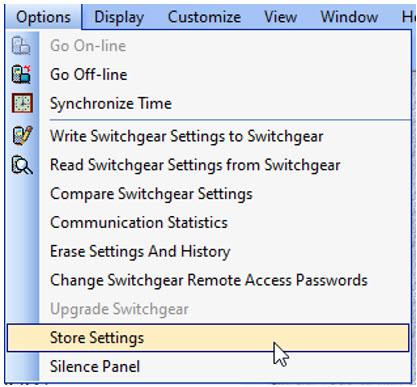
Figure 30
Store Settings navigation in WSOS5